


Most smartphone users are upset when they open their phone and see the SOS letters instead of the usual bars standing for signal. Immediately after, you begin to wonder if your SIM is not working. Is it possible the problem is the network? Is your phone currently giving you problems?
If you are going through this situation, don’t let anxiety take over. If you notice “SOS” or “SOS Only” on your phone, your device may not be malfunctioning or your account could not have been suspended. It suggests your phone or tablet is trying to indicate something related to your connection on your mobile network. Most of the time, it is easy to fix when you understand the cause.
The article examines the meaning of SOS mode, looks into all the factors that might cause it, and shares what you can do to sort it out.
Table of Contents
What Does “SOS” or “SOS Only” Mean on Your Phone?
If your phone displays “SOS” or “SOS Only” in the status bar, this means you can only do emergency calls at the moment. Basically, your phone will still allow calls to emergency numbers such as 112, 911, or the number from your area, unless there is an active SIM network.
Modern smartphones have this feature to keep you safe when you experience a sudden loss of service, SIM card challenges, or visit an area without the mobile carrier’s signal.
The Psychological Impact of Seeing “SOS”
It’s crucial to start by acknowledging that this kind of situation can be stressful for the mind before getting into technical matters. We depend on our phones a lot for more than just watching videos or making calls, as we use them for routing, finances, messaging at work, and social uses. If the service of your app abruptly grinds to a halt, it may cause anxiety and trouble for you. You should remain calm and fix each issue one step after another.
Common Reasons Why Your Phone Is on SOS
1. You’re in a No-Service or Weak Signal Area

This problem is seen more often than any other. If you are stuck in a rural village, a subway, the tunnel, or a highly crowded building, your phone might not get network coverage. Still, it is possible for it to locate emergency-access networks of other companies, therefore the presence of an “SOS” symbol.
The signal can be affected by tall skyscrapers, underground places, high mountain ranges, and stormy conditions. In a number of situations, rural areas may lack the necessary infrastructure, so phones can only show an “SOS” signal.
2. Your SIM Card Is Damaged or Not Inserted Properly
If the SIM card is not fitted properly or damaged, it may create confusion for your phone. It sometimes cannot verify with the carrier, and as a result, it enters emergency services mode. Although a phone without a valid SIM cannot use the full coverage of the carrier’s network, the emergency call option is generally available in most parts of the world. It means you will be able to request help even if the SIM card malfunctions or falls out of your phone.
Besides, water damage or a physical jolt can still harm the SIM card slot and hinder use of your card. In this situation, no amount of reinserting the SIM will work before the device’s problem is repaired.
3. Your Carrier Is Experiencing an Outage
Although unlikely, service outages from the carrier can happen sometimes. Problems like these can be caused by routine checks, disasters in nature or online world, cyberattacks, or random technology issues. When your SIM is giving no problems and the network should be working well, but you still get the “SOS” message, look on your provider’s website or social platforms to see if anyone else has the same problem. Short outages can happen, but some may happen for hours or continue for a whole day.
4. Roaming Is Disabled or SIM Is Not Compatible
SOS-only may happen if you try to use your phone overseas but you haven’t activated international roaming or your device isn’t able to link with the local cellular networks. If you don’t allow roaming when you go from the U.S. to Europe, your phone might work only for calls to emergency numbers. If your current coverage doesn’t match certain foreign 4G and 5G bands, you still won’t be able to use the network even when roaming is switched on.
In certain regions, your phone may not work properly with a foreign SIM, so it could say only “SOS Only” on the screen.
5. Your Phone Is in Airplane Mode or Network Settings Are Misconfigured
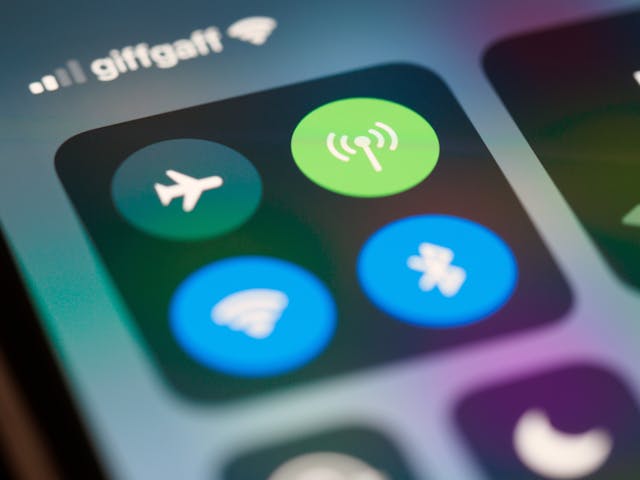
It sounds basic, but many users accidentally leave their phone in Airplane Mode or disable mobile networks through settings, and then wonder why the phone isn’t connecting. Sometimes, Airplane Mode doesn’t fully shut off when toggled quickly. Other times, a software update may reset your preferred network type to an incompatible mode, causing the “SOS” warning.
If your phone’s network settings are manually set to use a 5G-only network in an area where only 3G is available, it might also trigger an SOS situation.
6. SIM Card Not Activated or Blocked
If you just got a new SIM card, it might take time for activation. During this waiting period, your phone may show “SOS Only.” Alternatively, your account could be suspended due to unpaid bills, suspicious activity, or a technical issue on the provider’s end. A suspended SIM is typically locked out of the normal network, but still enabled to make emergency calls.
What to Do When Your Phone Is Stuck on SOS?
So you’ve figured out your phone is showing SOS. What now? Fortunately, there are a number of steps you can take before heading to a service center or contacting your carrier.
Restart Your Phone
A classic first step. Powering off your phone and turning it back on can refresh the system, reattempt connection to the network, and resolve minor glitches.
Check for Airplane Mode
Make sure your device isn’t in Airplane Mode. If it is, disable it and wait a few seconds for your phone to reconnect to the network.
Remove and Reinsert SIM Card

Turn off your phone, take out the SIM card, check for damage, clean it gently if needed, and reinsert it. Boot your phone again and see if the issue resolves.
Toggle Cellular Data and Preferred Network Type
On Android or iOS, go to Settings > Mobile Network, and try switching the network mode (e.g., from 5G to 4G or 3G) temporarily. This can help your phone latch onto a more stable signal.
Try Manual Network Selection
Go to your settings and manually search for available networks. If your provider’s name shows up in the list, tap on it to connect manually. Sometimes the automatic selection process fails due to internal glitches.
Contact Your Carrier
If none of the above solutions work, it’s time to reach out to customer support. They can check the status of your SIM, confirm if there’s an outage, or help troubleshoot further. If your SIM is suspended or blocked, only your provider can lift the restriction.
Check with Other Phones
Insert your SIM card into another phone. If the other phone also shows “SOS,” the problem is likely with the SIM or account. If it works fine on the other device, then your phone may have a hardware or software issue.
Update Your Device Software
Sometimes network connectivity issues are caused by outdated firmware or carrier settings. Go to Settings > System > Software Update and check for updates. Accept any pending system or security patches.
Reset Network Settings
This option should be used with caution, as it will delete all saved Wi-Fi passwords, Bluetooth pairings, and mobile data settings. But if nothing else works, go to Settings > System > Reset > Reset Network Settings. After the reset, reboot your phone.
Special Cases: iPhones and iOS Updates
iPhones are particularly known to display “SOS” or “No Service” in areas of low coverage or due to carrier setting mismatches. With every iOS update, Apple rolls out updates to carrier settings, and sometimes bugs may arise. If your iPhone suddenly switches to “SOS,” and you recently updated the OS, try resetting network settings or reinstalling the SIM.
You should also check:
Settings > General > About
If a popup appears saying “Carrier Settings Update,” make sure you tap “Update.”
Special Cases: Android Phones
Android phones come from various manufacturers—Samsung, Xiaomi, OnePlus, Motorola, etc.—each with its own UI layer over Android. Depending on your model, the steps to fix SOS issues may slightly differ, but the core principles remain the same.
Samsung phones, for instance, have a diagnostic tool under “Samsung Members” that lets you run a quick test on SIM and network settings. If you have a Xiaomi device, try going into “SIM Cards & Mobile Networks” settings to make manual adjustments.
How to Avoid This Problem in the Future?
- Use a carrier with wide network coverage. Not all networks are created equal. If you frequently travel, pick a provider known for good rural and national coverage.
- Keep your phone updated. System and carrier updates often include important fixes for network-related bugs.
- Protect your SIM card. Avoid removing or switching SIMs too frequently, and store them in anti-static packaging when not in use.
- Travel smart. If traveling abroad, ensure international roaming is enabled and your phone supports the destination’s network bands.
- Consider using eSIM. eSIMs are virtual and cannot get physically damaged or dislodged, reducing one potential source of SOS issues.
Final Thoughts
Seeing “SOS” on your phone can be unsettling, but it’s often a fixable issue. Whether it’s a temporary network glitch, a SIM card problem, or a simple setting that’s been toggled incorrectly, the key is to troubleshoot calmly and methodically. In rare cases, it may involve contacting your carrier or visiting a service center, but in most situations, users can resolve it themselves in a few steps.
Remember that your phone showing “SOS” is a safety feature—it means that in an emergency, you’re not alone. You can still reach help even when regular services fail. That reassurance is, in a way, a technological safeguard that brings peace of mind in an increasingly connected yet unpredictable world.
Please refer to our website for further information.
